

1. 1. 前提条件
预计完成时间:1-2 小时
您可以通过以下 2 种模式完成此 Codelab:本地测试或汇总服务。本地测试模式需要本地机器和 Chrome 浏览器(无需创建/使用 Google Cloud 资源)。汇总服务模式需要在 Google Cloud 上完整部署汇总服务。
无论采用哪种模式,您都需要满足一些前提条件才能完成此 Codelab。每个要求都会相应地标记为“本地测试”或“汇总服务”所需的要求。
1.1. 完成注册和证明(汇总服务)
如需使用 Privacy Sandbox API,请验证您是否已完成 Chrome 和 Android 的注册和证明。
1.2. 启用广告隐私权 API(本地测试和汇总服务)
由于我们将使用 Privacy Sandbox,因此建议您启用 Privacy Sandbox 广告 API。
在浏览器中,前往 chrome://settings/adPrivacy 并启用所有广告隐私权 API。
另请验证第三方 Cookie 是否已启用。
在 chrome://settings/cookies 中,确保未屏蔽第三方 Cookie。根据您的 Chrome 版本,此设置菜单中显示的选项可能会有所不同,但可接受的配置包括:
- “阻止所有第三方 Cookie”= 已停用
- “阻止第三方 Cookie”= 已停用
- “在无痕模式下阻止第三方 Cookie”= 已启用
 启用 Cookie
1.3. 下载本地测试工具(本地测试)
本地测试需要下载本地测试工具。该工具将根据未加密的调试报告生成摘要报告。
您可以在 GitHub 中的 Cloud Functions JAR 归档中下载本地测试工具。应命名为 LocalTestingTool_{version}.jar。
1.4. 验证是否已安装 JAVA JRE(本地测试和汇总服务)
打开“终端”,然后使用 java --version 检查您的机器是否已安装 Java 或 openJDK。
 检查 Java 版本。
如果未安装,您可以从 Java 网站或 openJDK 网站下载并安装。
1.5. 下载 aggregatable_report_converter(本地测试和汇总服务)
您可以从 Privacy Sandbox 演示 GitHub 代码库下载 aggregatable_report_converter 的副本。GitHub 代码库中提到了使用 IntelliJ 或 Eclipse,但这两者都不是必需的。如果您不使用这些工具,请改为将 JAR 文件下载到本地环境。
1.6. 设置 Cloud Platform 环境(汇总服务)
汇总服务需要使用云服务提供商提供的可信执行环境。在此 Codelab 中,聚合服务将部署在 Google Cloud 中,但也支持 AWS。
按照 GitHub 中的部署说明设置 gcloud CLI、下载 Terraform 二进制文件和模块,并为汇总服务创建 Google Cloud 资源。
部署说明中的关键步骤:
- 在您的环境中设置“gcloud”CLI 和 Terraform。
- 创建 Cloud Storage 存储分区以存储 Terraform 状态。
- 下载依赖项。
- 更新
adtech_setup.auto.tfvars并运行adtech_setupTerraform。如需查看adtech_setup.auto.tfvars文件示例,请参阅附录。记下此处创建的数据存储分区的名称 - 这将在 Codelab 中用于存储我们创建的文件。 - 更新
dev.auto.tfvars,模拟部署服务账号,然后运行devTerraform。如需查看dev.auto.tfvars文件示例,请参阅附录。 - 部署完成后,从 Terraform 输出中捕获
frontend_service_cloudfunction_url,后续步骤中需要使用此值向汇总服务发出请求。
1.7. 完成 Aggregation Service 初始配置(Aggregation Service)
汇总服务需要加入协调器才能使用。填写汇总服务初始配置表单,提供您的报告网站和其他信息,选择“Google Cloud”,然后输入您的服务账号地址。此服务账号是在之前的前提条件(1.6. 设置 Google Cloud 环境)。(提示:如果您使用提供的默认名称,此服务账号将以“worker-sa@”开头)。
初始配置流程最多需要 2 周的时间才能完成。
1.8. 确定您调用 API 端点(汇总服务)的方法
此 Codelab 提供了 2 种用于调用汇总服务 API 端点的选项:c网址 和 Postman。c网址 是从终端调用 API 端点的更快更简单的方式,因为它只需要极少的设置,并且不需要额外的软件。不过,如果您不想使用 c网址,也可以使用 Postman 来执行和保存 API 请求,以供日后使用。
在第 3.2 部分中。汇总服务使用情况,您会找到有关如何使用这两种选项的详细说明。您可以先预览一下,确定要使用哪种方法。如果您选择 Postman,请执行以下初始设置。
1.8.1. 设置工作区
注册 Postman 账号。注册后,系统会自动为您创建一个工作区。
 Postman 工作区。
如果系统未为您创建工作区,请前往顶部导航栏中的“工作区”,然后选择“创建工作区”。
选择“空白工作区”,点击“下一步”,然后将其命名为“GCP Privacy Sandbox”。选择“个人”,然后点击“创建”。
使用“导入”按钮将这两个 JSON 文件导入到“我的工作区”。
 “导入”按钮。
这会为您创建“GCP Privacy Sandbox”集合以及 createJob 和 getJob HTTP 请求。
1.8.2. 设置授权
点击“GCP Privacy Sandbox”集合,然后前往“授权”标签页。
 授权按钮。
授权按钮。
您将使用“不记名令牌”方法。在终端环境中,运行以下命令并复制输出内容。
gcloud auth print-identity-token
然后,将此令牌值粘贴到 Postman 授权标签页的“令牌”字段中:
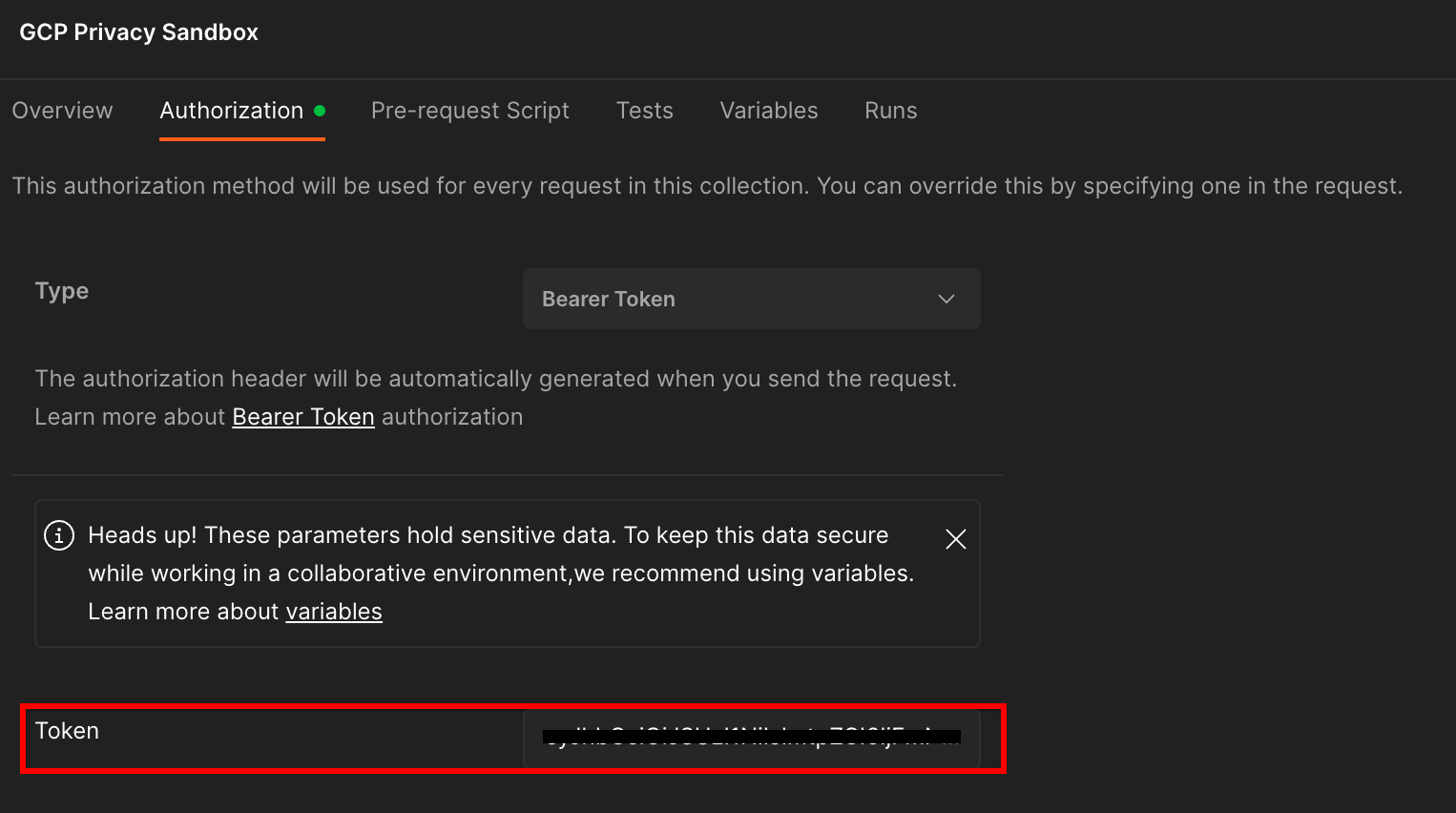 “令牌”字段。
1.8.3. 设置环境
前往右上角的“环境概览”:
 “环境”快速查看按钮。
点击“修改”,然后更新“environment”“region”和“cloud-function-id”的“当前值”:
 设置当前值。
您可以暂时将“request-id”留空,我们稍后会填写。对于其他字段,请使用 frontend_service_cloudfunction_url 中的值,该值是在前提条件 1.6 中成功完成 Terraform 部署后返回的。网址采用以下格式:https://
2. 2. 本地测试 Codelab
预计完成时间:<1 小时
您可以使用本地测试工具在自己的机器上执行汇总,并使用未加密的调试报告生成摘要报告。开始之前,请验证您是否已完成所有标记为“本地测试”的前提条件。
Codelab 步骤
第 2.1 步。触发报告:触发 Private Aggregation 报告,以便能够收集报告。
第 2.2 步:创建调试 AVRO 报告:将收集的 JSON 报告转换为 AVRO 格式的报告。此步骤类似于广告技术平台从 API 报告端点收集报告并将 JSON 报告转换为 AVRO 格式的报告。
第 2.3 步。检索分桶键:分桶键由广告技术平台设计。在此 Codelab 中,由于存储分区是预定义的,因此请按提供的形式检索存储分区键。
第 2.4 步。创建输出网域 AVRO:检索到存储分区密钥后,创建输出网域 AVRO 文件。
第 2.5 步。创建摘要报告:使用本地测试工具,以便在本地环境中创建摘要报告。
第 2.6 步。查看摘要报告:查看本地测试工具创建的摘要报告。
2.1. 触发报告
如需触发私密汇总报告,您可以使用 Privacy Sandbox Demos 演示网站 (https://privacy-sandbox-demos-news.dev/?env=gcp) 或您自己的网站(例如 https://adtechexample.com)。如果您使用的是自己的网站,但尚未完成注册和证明以及汇总服务启用流程,则需要使用 Chrome flag 和 CLI 开关。
在此演示中,我们将使用 Privacy Sandbox 演示网站。点击链接前往相应网站;然后,您可以在 chrome://private-aggregation-internals 查看报告:
 Chrome 内部页面。
发送到 {reporting-origin}/.well-known/private-aggregation/debug/report-shared-storage 端点的报告也会显示在 Chrome Internals 页面上显示的报告的“报告正文”中。
您可能会在此处看到许多报告,但对于此 Codelab,请使用由调试端点生成的特定于 Google Cloud 的可汇总报告。“报告网址”将包含“/debug/”,而“报告正文”的 aggregation_coordinator_origin field 将包含以下网址:https://publickeyservice.msmt.gcp.privacysandboxservices.com。
 Google Cloud 调试报告。
2.2. 创建调试可汇总的报告
复制 chrome://private-aggregation-internals 的“报告正文”中的报告,并在 privacy-sandbox-demos/tools/aggregatable_report_converter/out/artifacts/aggregatable_report_converter_jar 文件夹(位于前提条件 1.5 中下载的代码库内)中创建一个 JSON 文件。
在此示例中,我们使用的是 vim,因为我们使用的是 Linux。不过,您可以使用任何所需的文本编辑器。
vim report.json
将报告粘贴到 report.json 中,然后保存文件。
 报告 JSON 代码。
获得该信息后,使用 aggregatable_report_converter.jar 帮助创建调试可汇总报告。此命令会在当前目录中创建一个名为 report.avro 的可汇总报告。
java -jar aggregatable_report_converter.jar \
  --request_type convertToAvro \
  --input_file report.json \
  --debug
2.3. 从报告中检索存储分区密钥
如需创建 output_domain.avro 文件,您需要可从报告中检索到的存储分区键。
分桶键由广告技术平台设计。不过,在本例中,分桶键由网站 Privacy Sandbox 演示创建。由于相应网站的 Private Aggregation 处于调试模式,我们可以使用“报告正文”中的 debug_cleartext_payload 获取分桶键。
请继续操作,从报告正文中复制 debug_cleartext_payload。
 调试明文载荷。
打开 goo.gle/ags-payload-decoder,将 debug_cleartext_payload 粘贴到“INPUT”框中,然后点击“Decode”。
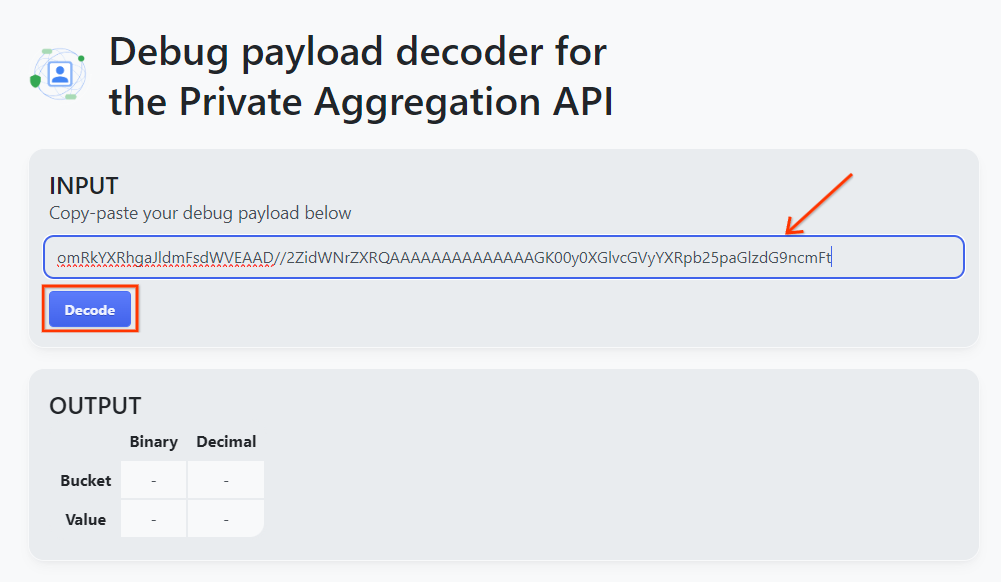 “解码”按钮。
该网页会返回分桶键的十进制值。以下是存储分区密钥示例。
 一个示例分桶键。
2.4. 创建输出网域 AVRO
现在我们有了存储分区密钥,接下来在之前使用的文件夹中创建 output_domain.avro。验证您是否已将存储分区密钥替换为您检索到的存储分区密钥。
java -jar aggregatable_report_converter.jar \
  --request_type createDomainAvro \
  --bucket_key <bucket key>
该脚本会在当前文件夹中创建 output_domain.avro 文件。
2.5. 使用本地测试工具创建摘要报告
我们将使用在前提条件 1.3 中下载的 LocalTestingTool_{version}.jar,通过以下命令创建摘要报告。将 {version} 替换为您下载的版本。请务必将 LocalTestingTool_{version}.jar 移至当前目录,或添加相对路径以引用其当前位置。
java -jar LocalTestingTool_{version}.jar \
  --input_data_avro_file report.avro \
  --domain_avro_file output_domain.avro \
  --output_directory .
运行该命令后,您应该会看到如下所示的内容。完成后,系统会生成一份报告 output.avro。
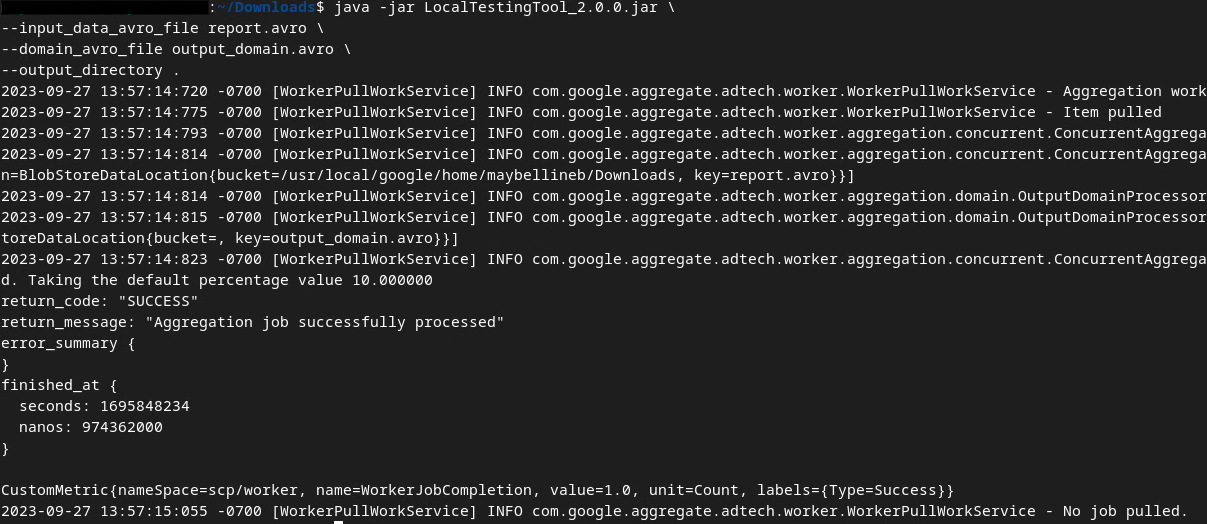 输出 AVRO
2.6. 查看摘要报告
创建的摘要报告采用 AVRO 格式。为了能够读取此文件,您需要将其从 AVRO 格式转换为 JSON 格式。理想情况下,广告技术平台应编写代码将 AVRO 报告转换回 JSON。
我们将使用 aggregatable_report_converter.jar 将 AVRO 报告转换回 JSON。
java -jar aggregatable_report_converter.jar \
  --request_type convertToJson \
  --input_file output.avro
这会返回类似于以下内容的报告。以及在同一目录中创建的报告 output.json。
 输出 JSON
Codelab 已完成!
总结:您已收集调试报告、构建输出网域文件,并使用模拟 Aggregation Service 汇总行为的本地测试工具生成摘要报告。
后续步骤:现在,您已经试用了本地测试工具,接下来可以在自己的环境中尝试对汇总服务进行实时部署。重新查看前提条件,确保您已为“汇总服务”模式设置好一切,然后继续执行第 3 步。
3. 3. 汇总服务 Codelab
预计完成时间:1 小时
开始之前,请验证您是否已完成所有标记为“汇总服务”的前提条件。
Codelab 步骤
第 3.1 步。创建汇总服务输入:创建为汇总服务分批处理的汇总服务报告。
- 第 3.1.1 步。触发报告
- 第 3.1.2 步。收集可汇总的报告
- 第 3.1.3 步。将报告转换为 AVRO 格式
- 第 3.1.4 步。创建 output_domain AVRO
- 第 3.1.5 步。将报告移至 Cloud Storage 存储分区
第 3.2 步。汇总服务使用情况:使用汇总服务 API 创建摘要报告并查看摘要报告。
- 第 3.2.1 步。使用
createJob端点进行批量处理 - 第 3.2.2 步。使用
getJob端点检索批处理状态 - 第 3.2.3 步。查看摘要报告
3.1. 创建 Aggregation Service 输入
继续操作,创建 AVRO 报告以批量发送到汇总服务。这些步骤中的 shell 命令可以在 Google Cloud 的 Cloud Shell 中运行(前提是将“前提条件”中的依赖项克隆到您的 Cloud Shell 环境中),也可以在本地执行环境中运行。
3.1.1. 触发报告
点击链接前往相应网站;然后,您可以在 chrome://private-aggregation-internals 查看报告:
Chrome 内部页面
发送到 {reporting-origin}/.well-known/private-aggregation/debug/report-shared-storage 端点的报告也会显示在 Chrome Internals 页面上所显示报告的“报告正文”中。
您可能会在此处看到许多报告,但对于此 Codelab,请使用由调试端点生成的特定于 Google Cloud 的可汇总报告。“报告网址”将包含“/debug/”,而“报告正文”的 aggregation_coordinator_origin field 将包含以下网址:https://publickeyservice.msmt.gcp.privacysandboxservices.com。
Google Cloud 调试报告。
3.1.2. 收集可汇总的报告
从相应 API 的 .well-known 端点收集可汇总报告。
- 不公开汇总:
{reporting-origin}/.well-known/private-aggregation/report-shared-storage - Attribution Reporting - 摘要报告:
{reporting-origin}/.well-known/attribution-reporting/report-aggregate-attribution
在此 Codelab 中,我们将手动执行报告集合。在生产环境中,广告技术平台应以程序化方式收集和转换报告。
我们继续操作,从 chrome://private-aggregation-internals 中复制“报告正文”中的 JSON 报告。
在此示例中,我们使用 vim,因为我们使用的是 Linux。不过,您可以使用任何所需的文本编辑器。
vim report.json
将报告粘贴到 report.json 中,然后保存文件。
报告 JSON
3.1.3. 将报告转换为 AVRO 格式
从 .well-known 端点收到的报告为 JSON 格式,需要转换为 AVRO 报告格式。获得 JSON 报告后,前往 report.json 的存储位置,然后使用 aggregatable_report_converter.jar 帮助创建调试可汇总报告。此命令会在当前目录中创建一个名为 report.avro 的可汇总报告。
java -jar aggregatable_report_converter.jar \
  --request_type convertToAvro \
  --input_file report.json
3.1.4. 创建 output_domain AVRO
如需创建 output_domain.avro 文件,您需要可从报告中检索到的存储分区键。
分桶键由广告技术平台设计。不过,在本例中,分桶键由网站 Privacy Sandbox 演示创建。由于相应网站的 Private Aggregation 处于调试模式,我们可以使用“报告正文”中的 debug_cleartext_payload 获取分桶键。
请继续操作,从报告正文中复制 debug_cleartext_payload。
调试明文载荷。
打开 goo.gle/ags-payload-decoder,将 debug_cleartext_payload 粘贴到“INPUT”框中,然后点击“Decode”。
“解码”按钮。
该网页会返回分桶键的十进制值。以下是存储分区密钥示例。
一个示例分桶键。
现在我们有了存储分区密钥,接下来在之前使用的文件夹中创建 output_domain.avro。验证您是否已将存储分区密钥替换为您检索到的存储分区密钥。
java -jar aggregatable_report_converter.jar \
  --request_type createDomainAvro \
  --bucket_key <bucket key>
该脚本会在当前文件夹中创建 output_domain.avro 文件。
3.1.5. 将报告移至 Cloud Storage 存储分区
创建 AVRO 报告和输出网域后,继续将报告和输出网域移至 Cloud Storage 中的存储分区(您在前提条件 1.6 中记下的存储分区)。
如果您已在本地环境中设置 gcloud CLI,请使用以下命令将文件复制到相应文件夹。
gcloud storage cp report.avro gs://<bucket_name>/reports/

gcloud storage cp output_domain.avro gs://<bucket_name>/output_domain/
否则,请手动将文件上传到存储分区。创建一个名为“reports”的文件夹,并将 report.avro 文件上传到该文件夹中。创建一个名为“output_domains”的文件夹,并将 output_domain.avro 文件上传到该文件夹。
3.2. Aggregation Service 用量
请回想一下,在前提条件 1.8 中,您选择了 curl 或 Postman 来向汇总服务端点发出 API 请求。下面提供了这两种选项的说明。
如果作业因错误而失败,请查看 GitHub 中的问题排查文档,详细了解如何继续操作。
3.2.1. 使用 createJob 端点进行批量处理
使用以下任一 curl 或 Postman 说明来创建作业。
curl
在“终端”中,创建一个请求正文文件 (body.json),然后粘贴以下 JSON 对象。请务必更新占位值。如需详细了解每个字段的含义,请参阅此 API 文档。
{
    "job_request_id": "<job_request_id>",
    "input_data_blob_prefix": "<report_folder>/<report_name>.avro",
    "input_data_blob_prefixes": [ // Mutually exclusive to input_data_blob_prefix as of v2.11.0
      "<report_folder>/<report_name-1>/",
      "<report_folder>/<report_name-2>/",
      "<report_folder>/<report_name>.avro"
    ],
    "input_data_bucket_name": "<bucket_name>",
    "output_data_blob_prefix": "<output_folder>/<summary_report_prefix>",
    "output_data_bucket_name": "<bucket_name>",
    "job_parameters": {
      "output_domain_blob_prefix": "<output_domain_folder>/<output_domain>.avro",
      "output_domain_bucket_name": "<bucket_name>",
      "attribution_report_to": "<reporting origin of report>",
      "reporting_site": "<domain of reporting origin(s) of report>", // Mutually exclusive to attribution_report_to as of v2.7.0
      "report_error_threshold_percentage": "10",
      "debug_run": "true"
    }
}
执行以下请求。将 curl 请求网址中的占位符替换为 frontend_service_cloudfunction_url 中的值,该值是在前提条件 1.6 中成功完成 Terraform 部署后输出的。
curl -H "Authorization: Bearer $(gcloud auth print-identity-token)" \
  -d @body.json \
  https://<environment>-<region>-frontend-service-<cloud-function-id>-uc.a.run.app/v1alpha/createJob
当汇总服务接受请求后,您应该会收到 HTTP 202 响应。其他可能的响应代码已在 API 规范中记录。
Postman
对于 createJob 端点,需要提供请求正文,以便向汇总服务提供可汇总报告、输出网域和摘要报告的位置和文件名。
前往 createJob 请求的“正文”标签页:
 “身体”标签页
替换所提供的 JSON 中的占位符。如需详细了解这些字段及其表示的含义,请参阅 API 文档。
{
    "job_request_id": "<job_request_id>",
    "input_data_blob_prefix": "<report_folder>/",
    "input_data_blob_prefixes": [ // Mutually exclusive to input_data_blob_prefix as of v2.11.0
      "<report_folder>/<report_name-1>/",
      "<report_folder>/<report_name-2>/",
      "<report_folder>/<report_name>.avro"
    ],
    "input_data_bucket_name": "<bucket_name>",
    "output_data_blob_prefix": "<output_folder>/<summary_report_prefix>",
    "output_data_bucket_name": "<bucket_name>",
    "job_parameters": {
      "output_domain_blob_prefix": "<output_domain_folder>/<output_domain>.avro",
      "output_domain_bucket_name": "<bucket_name>",
      "attribution_report_to": "<reporting origin of report>",
      "reporting_site": "<domain of reporting origin(s) of report>", // Mutually exclusive to attribution_report_to as of v2.7.0
      "report_error_threshold_percentage": "10",
      "debug_run": "true"
    }
}
“发送”createJob API 请求:
 “发送”按钮
您可以在页面下半部分找到响应代码:
 响应代码
响应代码
当汇总服务接受请求后,您应该会收到 HTTP 202 响应。其他可能的响应代码已在 API 规范中记录。
3.2.2. 使用 getJob 端点检索批处理状态
使用以下任一 curl 或 Postman 说明来获取作业。
curl
在终端中执行以下请求。将网址中的占位符替换为 frontend_service_cloudfunction_url 中的值,该网址与您用于 createJob 请求的网址相同。对于“job_request_id”,请使用您通过 createJob 端点创建的作业中的值。
curl -H "Authorization: Bearer $(gcloud auth print-identity-token)" \
  https://<environment>-<region>-frontend-service-<cloud-function-id>-uc.a.run.app/v1alpha/getJob?job_request_id=<job_request_id>
结果应返回作业请求的状态,并显示 HTTP 状态 200。请求“正文”包含必要的信息,例如 job_status、return_message 和 error_messages(如果作业出错)。
Postman
如需检查作业请求的状态,您可以使用 getJob 端点。在 getJob 请求的“Params”部分中,将 job_request_id 值更新为 createJob 请求中发送的 job_request_id。
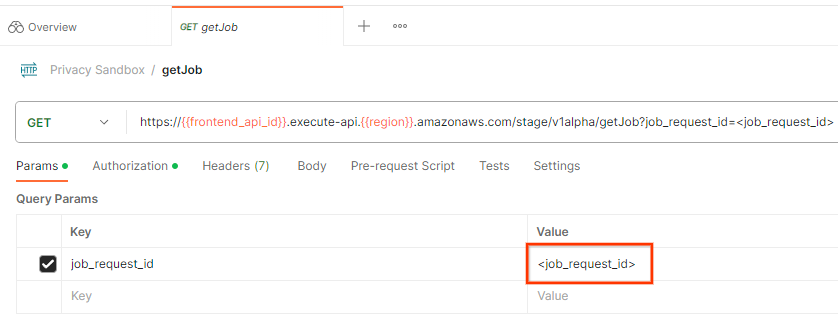 作业请求 ID
“发送”getJob 请求:
 “发送”按钮
结果应返回作业请求的状态,并显示 HTTP 状态 200。请求“正文”包含必要的信息,例如 job_status、return_message 和 error_messages(如果作业出错)。
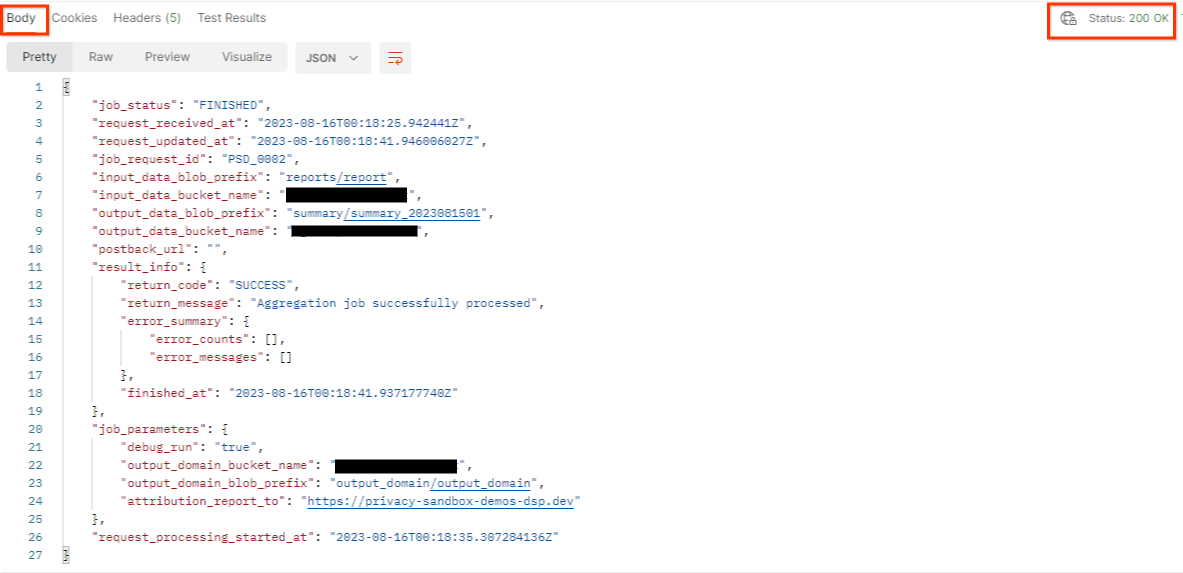 响应 JSON
3.2.3. 查看摘要报告
在输出 Cloud Storage 存储分区中收到摘要报告后,您可以将其下载到本地环境。摘要报告采用 AVRO 格式,可以转换回 JSON 格式。您可以使用 aggregatable_report_converter.jar 通过此命令读取报告。
java -jar aggregatable_report_converter.jar \
  --request_type convertToJson \
  --input_file <summary_report_avro>
此函数会返回一个 JSON,其中包含每个分桶键的汇总值,如下所示。
 摘要报告。
摘要报告。
如果您的 createJob 请求包含 debug_run(值为 true),那么您可以在 output_data_blob_prefix 中的调试文件夹中收到摘要报告。报告采用 AVRO 格式,可以使用上述命令转换为 JSON 格式。
报告包含以下内容:分桶键、未添加噪声的指标,以及为形成汇总报告而添加到未添加噪声的指标中的噪声。报告类似于以下内容。
 添加了噪声的报告
注释还包含“in_reports”或“in_domain”(或两者兼有),这意味着:
- in_reports - 桶键可在可汇总报告中使用。
- in_domain - 存储分区密钥位于 output_domain AVRO 文件中。
Codelab 已完成!
总结:您已在自己的云环境中部署了汇总服务,收集了调试报告,构建了输出网域文件,将这些文件存储在 Cloud Storage 存储分区中,并成功运行了作业!
后续步骤:继续在您的环境中运行汇总服务,或按照第 4 步中的清理说明删除您刚刚创建的云资源。
4. 4. 清理
如需使用 Terraform 删除为汇总服务创建的资源,请在 adtech_setup 和 dev(或其他环境)文件夹中使用 destroy 命令:
$ cd <repository_root>/terraform/gcp/environments/adtech_setup
$ terraform destroy
$ cd <repository_root>/terraform/gcp/environments/dev
$ terraform destroy
如需删除包含可汇总报告和摘要报告的 Cloud Storage 存储分区,请执行以下操作:
$ gcloud storage buckets delete gs://my-bucket
您还可以选择将 Chrome Cookie 设置从前提条件 1.2 中的状态恢复到之前的状态。
5. 5. 附录
adtech_setup.auto.tfvars 文件示例
/**
 * Copyright 2023 Google LLC
 *
 * Licensed under the Apache License, Version 2.0 (the "License");
 * you may not use this file except in compliance with the License.
 * You may obtain a copy of the License at
 *
 *      http://www.apache.org/licenses/LICENSE-2.0
 *
 * Unless required by applicable law or agreed to in writing, software
 * distributed under the License is distributed on an "AS IS" BASIS,
 * WITHOUT WARRANTIES OR CONDITIONS OF ANY KIND, either express or implied.
 * See the License for the specific language governing permissions and
 * limitations under the License.
 */

project = "my-project-id"

# Required to generate identity token for access of Adtech Services API endpoints
service_account_token_creator_list = ["user:me@email.com"]

# Uncomment the below line if you like Terraform to create an Artifact registry repository
# for self-build container artifacts. "artifact_repo_location" defaults to "us".
artifact_repo_name     = "my-ags-artifacts"

# Note: Either one of [1] or [2] must be uncommented.

# [1] Uncomment below lines if you like Terraform grant needed permissions to
# pre-existing service accounts
# deploy_service_account_email = "<YourDeployServiceAccountName>@<ProjectID>.iam.gserviceaccount.com"
# worker_service_account_email = "<YourWorkerServiceAccountName>@<ProjectID>.iam.gserviceaccount.com"

# [2] Uncomment below lines if you like Terraform to create service accounts
# and needed permissions granted e.g "deploy-sa" or "worker-sa"
deploy_service_account_name = "deploy-sa"
worker_service_account_name = "worker-sa"
# Uncomment the below line if you want Terraform to create the
# below bucket. "data_bucket_location" defaults to "us".
data_bucket_name     = "my-ags-data"

# Uncomment the below lines if you want to specify service account customer role names
# deploy_sa_role_name = "<YourDeploySACustomRole>"
# worker_sa_role_name = "<YourWorkerSACustomRole>"
dev.auto.tfvars 文件示例
/**
 * Copyright 2022 Google LLC
 *
 * Licensed under the Apache License, Version 2.0 (the "License");
 * you may not use this file except in compliance with the License.
 * You may obtain a copy of the License at
 *
 *      http://www.apache.org/licenses/LICENSE-2.0
 *
 * Unless required by applicable law or agreed to in writing, software
 * distributed under the License is distributed on an "AS IS" BASIS,
 * WITHOUT WARRANTIES OR CONDITIONS OF ANY KIND, either express or implied.
 * See the License for the specific language governing permissions and
 * limitations under the License.
 */

# Example values required by job_service.tf
#
# These values should be modified for each of your environments.
region      = "us-central1"
region_zone = "us-central1-c"

project_id  = "my-project-id"
environment = "operator-demo-env"

# Co-locate your Cloud Spanner instance configuration with the region above.
# https://cloud.google.com/spanner/docs/instance-configurations#regional-configurations
spanner_instance_config = "regional-us-central1"

# Adjust this based on the job load you expect for your deployment.
# Monitor the spanner instance utilization to decide on scale out / scale in.
# https://console.cloud.google.com/spanner/instances
spanner_processing_units = 100

# Uncomment the line below at your own risk to disable Spanner database protection.
# This needs to be set to false and applied before destroying all resources is possible.
spanner_database_deletion_protection = false

instance_type = "n2d-standard-8" # 8 cores, 32GiB

# Container image location that packages the job service application
# If not set otherwise, uncomment and edit the line below:
#worker_image = "<location>/<project>/<repository>/<image>:<tag or digest>"

# Service account created and onboarded for worker
user_provided_worker_sa_email = "worker-sa@my-project-id.iam.gserviceaccount.com"

min_worker_instances = 1
max_worker_instances = 20