


Chrome 將在 130 版中,為儲存空間存取 API (SAA) 新增 HTTP 標頭,並展開來源試用:儲存空間存取標頭。新的 Sec-Fetch-Storage-Access 要求標頭和 Activate-Storage-Access 回應標頭旨在支援非 iframe 資源,並提升依賴嵌入內容 (例如社群媒體小工具、日曆和互動式工具) 的網站效能和使用者體驗。
JavaScript 流程 (和相關限制)
先前,即使使用者已授予權限,SAA 仍會在每次重新載入時,要求進行 JavaScript API 呼叫。document.requestStorageAccess()雖然這個方法很有效,但有以下限制:
- 多次網路往返:嵌入內容通常需要多次網路要求和網頁重新載入,才能完全正常運作。
- Iframe 依附元件:JavaScript 執行作業強制使用 iframe 或 iframe 中的子資源,限制開發人員的彈性。
舉例來說,如果只使用 JavaScript,在 website.example 上嵌入 calendar.example 的日曆小工具,看起來會像這樣:
- 載入預留位置:
website.example會要求小工具。由於嵌入website.example的calendar.example小工具無法存取未分割的 Cookie,因此系統會改為轉譯預留位置小工具。 - 要求權限:載入預留位置,然後呼叫
document.requestStorageAccess()要求storage-access權限。 - 使用者選擇授予權限。
- 重新載入小工具:小工具會重新整理,這次會存取 Cookie,並最終載入個人化內容。
- 每次使用者再次造訪嵌入
calendar.example小工具的網站時,流程與步驟 1、2 和 4 完全相同;唯一簡化的部分是使用者不需要重新授予存取權。
這個流程效率不彰:如果使用者已授予儲存空間權限,就不需要初始 iframe 載入、document.requestStorageAccess() 呼叫和後續重新載入,這樣會造成延遲。
使用 HTTP 標頭的新流程
新的儲存空間存取權標頭可更有效率地載入內嵌內容,包括非 iframe 資源。
如果使用者已授予權限,瀏覽器會自動擷取資源,並設定 Sec-Fetch-Storage-Access: inactive 要求標頭。開發人員無須採取任何動作即可設定要求標頭。伺服器可以透過 Activate-Storage-Access: retry; allowed-origin="<origin>" 標頭回應,瀏覽器會使用必要憑證重試要求。
要求標頭
Sec-Fetch-Storage-Access: <access-status>
當使用者造訪內嵌跨網站內容的網頁時,瀏覽器會在可能需要憑證 (例如 Cookie) 的跨網站要求中,自動加入 Sec-Fetch-Storage-Access 標頭。這個標頭會指出嵌入內容的 Cookie 存取權狀態。如何解讀這些值:
none:嵌入內容沒有storage-access權限,因此無法存取未分割的 Cookie。inactive:嵌入內容具有storage-access權限,但尚未選擇使用。嵌入內容無法存取未經分割的 Cookie。active:嵌入內容可存取未經區隔的 Cookie。如果跨來源要求可存取未經分割的 Cookie,系統就會納入這個值。
回應標頭
Activate-Storage-Access: <retry-or-reload>
Activate-Storage-Access 標頭會指示瀏覽器重試要求 (附上 Cookie),或直接載入已啟用 SAA 的資源。標頭可包含下列值:
load:指示瀏覽器授予嵌入器對所要求資源的未分割 Cookie 的存取權。retry:伺服器會回應瀏覽器應啟用儲存空間存取權,然後重試要求。
Activate-Storage-Access: retry; allowed-origin="https://site.example"
Activate-Storage-Access: retry; allowed-origin=*
Activate-Storage-Access: load
支援非 iframe 資源
儲存空間存取標頭更新可讓 SAA 用於非 iframe 嵌入內容,例如代管於其他網域的圖片。先前,如果瀏覽器無法使用第三方 Cookie,就沒有任何網頁平台 API 允許載入這類含有憑證的資源。舉例來說,embedding-site.example 可以要求圖片:
<img src="https://server.example/image"/>
伺服器可以根據是否有 Cookie,傳回內容或錯誤:
app.get('/image', (req, res) => {
  const headers = req.headers;
  const cookieHeader = headers.cookie;
  // Check if the embed has the necessary cookie access
  if (!cookieHeader || !cookieHeader.includes('foo')) {
  // If the cookie is not present, check if the browser supports Storage Access headers
    if (
      'sec-fetch-storage-access' in headers &&
      headers['sec-fetch-storage-access'] == 'inactive'
    ) {
    // If the browser supports Storage Access API, retry the request with storage access enabled
      res.setHeader('Activate-Storage-Access', 'retry; allowed-origin="https://embedding-site.example"');
    }
    res.status(401).send('No cookie!');
   } else {
    // If the cookie is available, check if the user is authorized to access the image
    if (!check_authorization(cookieHeader)) {
      return res.status(401).send('Unauthorized!');
    }
    // If the user is authorized, respond with the image file
    res.sendFile("path/to/image.jpeg");
  }
});
如果沒有 Cookie,伺服器會檢查 Sec-Fetch-Storage-Access 要求標頭的值。如果這個值設為 inactive,伺服器會傳回 Activate-Storage-Access: retry 標頭,表示應使用儲存空間存取權重試要求。如果沒有 Cookie,且 Sec-Fetch-Storage-Access 標頭的值不是 inactive,圖片就不會載入。
HTTP 標頭流程
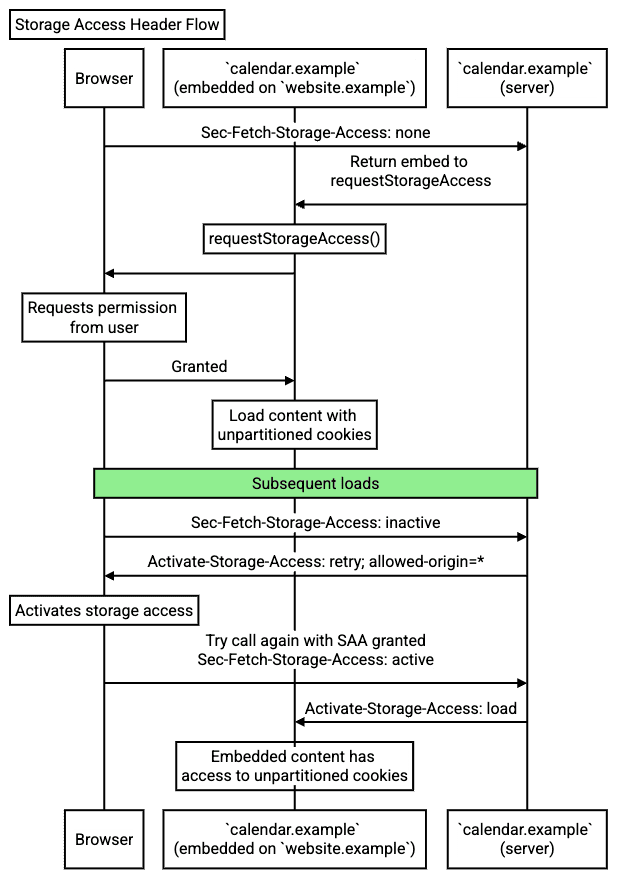
有了 HTTP 標頭,瀏覽器就能辨識使用者是否已授予小工具儲存空間存取權,並在後續造訪時載入可存取未分割 Cookie 的 iframe。
使用儲存空間存取權標頭時,後續造訪頁面會觸發下列流程:
- 使用者再次造訪內嵌
calendar.example的website.example。與先前一樣,這個擷取作業目前仍無法存取 Cookie。不過,使用者先前已授予storage-access權限,且擷取作業包含Sec-Fetch-Storage-Access: inactive標頭,表示可存取未經分割的 Cookie,但目前未使用。 calendar.example伺服器會以Activate-Storage-Access: retry; allowed-origin="<origin>"標頭 (在本例中,<origin>會是https://website.example) 回應,指出資源擷取作業需要使用具有儲存空間存取權的未分割 Cookie。- 瀏覽器會重試要求,這次會加入未經分割的 Cookie (為這項擷取作業啟用
storage-access權限)。 calendar.example伺服器會傳回個人化 iframe 內容。回應包含Activate-Storage-Access: load標頭,表示瀏覽器應載入已啟用storage-access權限的內容 (換句話說,載入時應具備未經分割的 Cookie 存取權,如同已呼叫document.requestStorageAccess())。- 使用者代理程式會使用 storage-access 權限載入 iframe 內容,且不會分割 Cookie 存取權。完成這個步驟後,小工具就能正常運作。
更新解決方案
在兩種情況下,您可能需要更新程式碼:
- 您使用 SAA,並想透過標題邏輯提升成效。
- 您有驗證或邏輯,取決於伺服器上的要求是否包含
Origin標頭。
實作 SAA 標頭邏輯
如要在解決方案中使用 Storage Access Headers,您必須更新解決方案。假設您是「calendar.example」擁有者,如要讓 website.example 載入個人化 calendar.example 小工具,小工具程式碼必須具備儲存空間存取權。
用戶端
現有解決方案不需要在用戶端更新任何程式碼,即可使用儲存空間存取權標頭功能。請參閱說明文件,瞭解如何導入 SAA。
伺服器端
在伺服器端,您可以使用新的標頭:
app.get('/cookie-access-endpoint', (req, res) => {
  const storageAccessHeader = req.headers['sec-fetch-storage-access'];

  if (storageAccessHeader === 'inactive') {
    // User needs to grant permission, trigger a prompt
    if (!validate_origin(req.headers.origin)) {
      res.status(401).send(`${req.headers.origin} is not allowed to send` +
          ' credentialed requests to this server.');
      return;
    }
    res.set('Activate-Storage-Access', `retry; allowed-origin="${req.headers.origin}"`);
    res.status(401).send('This resource requires storage access. Please grant permission.');
  } else if (storageAccessHeader === 'active') {
    // User has granted permission, proceed with access
    res.set('Activate-Storage-Access', 'load');
    // Include the actual iframe content here
    res.send('This is the content that requires cookie access.');
  } else {
    // Handle other cases (e.g., 'Sec-Fetch-Storage-Access': 'none')
  }
});
請參閱示範,瞭解這項解決方案的實際運作方式。
更新 Origin 標頭邏輯
使用儲存空間存取權標頭時,Chrome 會在比以往更多的要求中傳送 Origin 標頭。如果伺服器端邏輯只依賴特定類型要求 (例如 CORS 定義的要求) 的 Origin 標頭,這項異動可能會影響伺服器端邏輯。
為避免發生問題,請檢查伺服器端程式碼:
- 檢查是否有任何驗證或邏輯取決於
Origin標頭是否存在。 - 更新程式碼,在更多情況下處理
Origin標頭。
主要優點
建議使用 Storage Access Headers,這是效能較佳的 SAA 使用方式。整體而言,這項異動帶來了幾項改善:
- 支援非 iframe 嵌入:為更多資源啟用 SAA。
- 減少網路用量:減少要求和縮小酬載。
- 降低 CPU 使用率:減少 JavaScript 處理作業。
- 改善使用者體驗:不再出現中斷性的中介載入畫面。
參加來源試用
您可以透過來源試用程序試用新功能,並針對實用性、實效性和有效性提供意見回饋。詳情請參閱「開始使用來源試用計畫」。
您可以註冊 Chrome 130 以上版本的來源試用,試用儲存空間存取權標頭功能。 如要參加來源試用,請按照下列步驟操作:
在本機測試
您可以在本機測試「儲存空間存取標頭」功能,確保網站已做好因應這項異動的準備。
請按照下列步驟設定 Chrome 執行個體:
- 在
chrome://flags/#storage-access-headers上啟用 Chrome 旗標。 - 重新啟動 Chrome,變更才會生效。
參與討論及分享意見
如有任何意見回饋或遇到問題,請回報問題。您也可以參閱 GitHub 說明文件,進一步瞭解儲存空間存取權標頭。